
You sit down, open your DAW or hit play on a track, and there it is. That annoying scratchy buzz. Not from the music. From your mouse. Every scroll, every cursor movement, and your studio monitors faithfully reproduce it in perfect detail. It’s maddening, especially when you’re working in a critical listening environment.
Let’s be honest, this is one of those problems that sounds like it should have a simple fix. And in a lot of cases, it does. The trick is knowing where to look.
I’ve dealt with this myself. Running a pair of studio monitors off my PC, I kept hearing a high-pitched whine every time I moved my cursor. Once I understood what was actually happening, the fix became obvious pretty quickly.
Key Takeaways
- Studio monitors buzzing when you move your mouse is almost always electromagnetic interference (EMI) from your PC bleeding into your audio signal.
- Switching your mouse to a different USB port costs nothing and can fix it in under a minute.
- Lowering your mouse’s polling rate is a quick software fix that works for a lot of people.
- An external DAC is the most reliable long-term solution for studio monitor setups.
Why Are Your Studio Monitors Buzzing in the First Place?
This means your speakers are acting like a microphone for electrical noise inside your computer. Think of your PC’s internals as a crowded city block. Your CPU, GPU, USB controller, and audio chip are all sharing the same power supply and sitting on the same circuit board. There’s a lot of electrical activity happening at once, and not all of it stays where it belongs.
Your mouse sends position data to your computer hundreds of times per second. That constant data transfer creates tiny fluctuations in the electrical current running through your motherboard. Your onboard audio chip, sitting right there on the same board, picks up those fluctuations and converts them into sound. The result is that buzzing noise from speakers when moving your mouse that’s driving you up the wall.
Two main culprits are responsible here.
Electromagnetic Interference (EMI) happens when electrical signals from one component, like your GPU or USB controller, leak into another, like your audio chip. Onboard motherboard audio circuits sit dangerously close to high-traffic data lanes, which makes them an easy target for this kind of bleed.
Ground loops are slightly different. They happen when two or more devices share a common electrical ground through different paths. If your speakers and your PC are plugged into different wall outlets, a small voltage difference between those grounds creates a hum that modulates every time your mouse sends data.
Free Fixes to Try Before You Spend Anything
A great way to start is by trying the zero-cost solutions first. These resolve the problem for a surprising number of people.
Switch Your Mouse to a Different USB Port
Not all USB ports on your motherboard are controlled by the same chip. Most boards have different clusters of ports wired through separate controllers. If your mouse shares a controller with your audio hardware, moving it can stop the studio monitors buzzing immediately.
Try the back panel instead of the front, or swap to a USB 2.0 port (usually black) rather than USB 3.0 (blue) or 3.1 (red). USB 2.0 operates at lower signal frequencies and tends to cause less audio interference. It sounds almost too simple, but this one move has fixed the problem for hundreds of people across forums and Reddit threads.
Lower Your Mouse Polling Rate to Reduce Buzzing Noise
Modern gaming mice often default to a 1000Hz polling rate, meaning your mouse reports its position to the PC 1,000 times per second. That is a lot of electrical chatter hitting your motherboard constantly.
Dropping to 500Hz or 250Hz cuts those data bursts in half or more. Open your mouse software, whether that’s Logitech G Hub, Razer Synapse, SteelSeries Engine, or whatever came with your mouse, and look for a Polling Rate or Report Rate setting under Performance or Settings. Drop it down, then listen. In many cases, the buzzing noise from your speakers when moving your mouse either changes pitch noticeably or disappears entirely.
Disable Unused Audio Inputs in Windows
One thing that catches people off guard is the “Listen to this device” setting enabled on a Line In or Microphone input. This routes whatever the input picks up, including internal interference, directly to your speakers in real time.
Right-click your speaker icon, open Sounds, and go to the Recording tab. Disable any inactive inputs like Line In, Stereo Mix, or an unused Microphone. Then head to the Playback tab, right-click your speakers, choose Properties, and under the Levels tab, mute any input channels you aren’t actively using. Small change, sometimes a big result.
Hardware Fixes For Studio Monitors Picking Up Mouse Movement
If the free fixes didn’t fully solve it, don’t lose hope. The hardware solutions are affordable, and one of them will almost certainly get you there.
Ferrite Beads
You’ve probably noticed that small plastic cylinder on older monitor cables or power adapters. That’s a ferrite bead. It acts as a passive filter for high-frequency electrical noise, absorbing interference before it travels further down the cable.
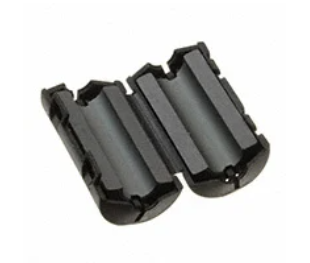
Pick up a pack of clip-on ferrite cores online. Snap one onto your mouse cable near the USB plug, and another onto your speaker cable near the 3.5mm jack. It’s one of those fixes that looks too basic to work, but the results are real.
A Ground Loop Isolator
If the noise sounds like a low hum mixed in with the mouse-movement scratching, a ground loop is likely involved. A ground loop isolator is a small inline device that sits between your PC’s audio output and your studio monitors. It uses internal transformers to break the shared electrical path that’s carrying the noise, while still passing your audio signal through cleanly.
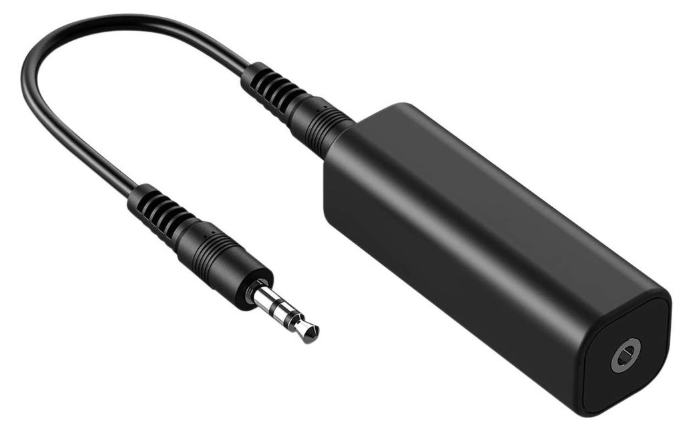
Plug it in between your audio cable and your speakers, and that’s it. For a small price, the improvement can be dramatic. This is often the fix for setups where studio monitors are picking up mouse movement and other fixes haven’t fully worked.
A Powered USB Hub
It might sound overly simple, but sharing the motherboard’s USB power rail across multiple devices adds noise.
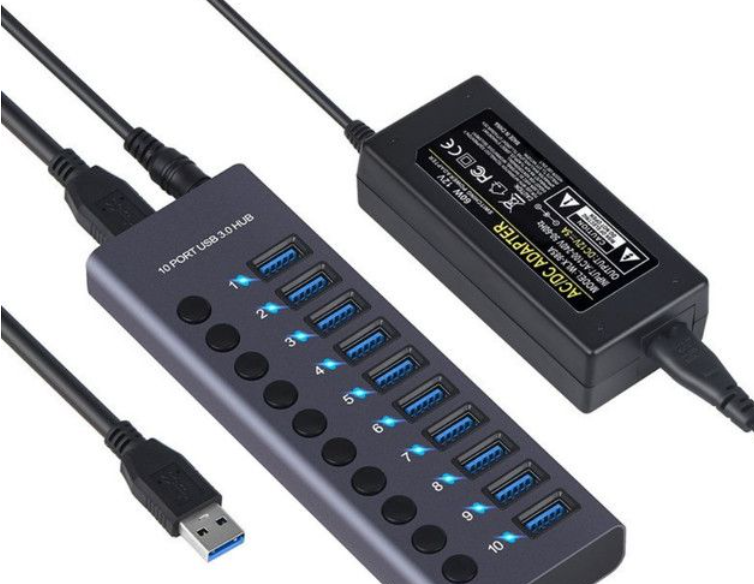
A powered USB hub draws from its own wall adapter rather than your PC, which reduces the electrical footprint your mouse creates on the motherboard’s shared rail. If you have several USB devices connected, this is worth trying before going further.
The Best Permanent Fix: Stop Studio Monitors Picking Up Mouse Movement With an External DAC
So, how do you get rid of this problem for good? You move the entire audio conversion process outside the PC.
The core issue is that your onboard audio chip converts your digital audio signal into analog right inside your case, surrounded by a GPU, CPU, and multiple USB controllers all generating interference. An external DAC (Digital-to-Analog Converter) receives the digital signal over USB or optical cable and does the conversion in its own enclosure, with its own filtered power supply and proper shielding.
The electrical noise simply cannot follow the audio signal out of the PC. Your audio chain starts fresh, outside all that interference.
You don’t need to spend a fortune. A budget external DAC in the $30 to $50 range will eliminate the buzzing noise from speakers when moving the mouse in almost every case. Options like the Schiit Modi, FiiO E10K, or even a budget Creative unit are popular choices. If you’re running studio monitors on a PC setup, an external DAC improves sound quality noticeably even beyond just fixing the interference problem. It’s worth it on its own merits.
One thing worth noting: if your monitors or audio interface support an optical Toslink connection, use it. Optical cables carry audio as pulses of light rather than electrical signal, which means there is zero electrical connection between your PC and your monitors. A ground loop or EMI literally cannot travel down a beam of light. If this option is available in your setup, it should be your first choice.
Which Fix to Try First
| Fix | Cost | Difficulty | Best For |
|---|---|---|---|
| Switch USB ports | Free | Very easy | Most cases, try first |
| Lower polling rate | Free | Easy | Gaming mice at 1000Hz |
| Disable audio inputs | Free | Easy | Windows users |
| Ferrite beads | $5 to $10 | Very easy | Mild EMI |
| Ground loop isolator | $10 to $15 | Easy | Hum combined with buzzing |
| Powered USB hub | $15 to $30 | Easy | Multi-device setups |
| External DAC | $30 to $200 | Moderate | Studio setups, permanent fix |
| Optical cable | Varies | Easy | When connection is available |
For Advanced Users: Fixing Buzz Through the BIOS
If none of the above has fully resolved the studio monitors buzzing, there’s one more level to go.
C-States are CPU power-saving features that drop the processor into a low-power state when idle. The moment you move your mouse, the CPU jumps back to full power. That rapid state switch creates an electrical spike that bleeds into the audio line. Some people describe it as a chirping or coil-whine sound that follows mouse movement rather than a continuous hum.
To disable C-States, restart your PC and enter the BIOS by pressing Delete or F2 during startup. Navigate to Advanced CPU Settings or Power Management and look for C-State Control. Set it to Disabled. Your idle power consumption will increase slightly, but the interference from those power state jumps will stop.
This is an advanced step. Try everything else first and come back to this only if you’re still hearing that specific chirping pattern tied to mouse movement.
Does the Type of Mouse Actually Matter?
One of the main questions we see online is whether swapping to a different mouse will solve the buzzing noise from speakers when moving the mouse. Realistically, probably not on its own. The issue usually isn’t the mouse itself — it’s how your motherboard responds to the USB data traffic the mouse creates. Even a well-shielded mouse still sends constant data through the USB controller.
That said, wireless mice can sometimes make things worse. Their USB receivers operate at radio frequencies that introduce their own layer of interference. I personally found that switching from a wireless receiver to a wired mouse and then dropping the polling rate made a real difference in my setup.
Putting It All Together
The question is: where do you actually start? Always the free stuff first. Move the USB port, drop the polling rate, and disable unused audio inputs. These three steps alone solve the problem for the majority of people dealing with studio monitors buzzing when they move their mouse.
If noise is still coming through after that, a ground loop isolator or ferrite beads cover the next tier cheaply. And if you’re running a proper home studio setup and want a permanent solution that also improves your audio quality across the board, an external DAC is the right call.
The good news is that you don’t need to replace your whole setup or chase down expensive gear. In most cases, the fix is a setting change or a $10 accessory away. Your monitors aren’t broken. Your PC isn’t dying. It’s an electrical noise problem with well-understood causes and practical fixes.
Once you nail it down, all you’ll hear through those monitors is exactly what you’re supposed to hear. Which, if you’re running studio monitors, is kind of the whole point.
Frequently Asked Questions
Why do I hear a buzzing sound only when I move my mouse?
Your mouse sends data to your PC hundreds of times per second. That electrical activity leaks into your motherboard’s onboard audio chip and comes out as buzzing through your speakers.
Why are my studio monitors buzzing?
Studio monitors buzzing is almost always caused by electromagnetic interference (EMI) from your PC’s internal components bleeding into your onboard audio chip.
Will a new mouse fix the buzzing noise from my speakers?
Not necessarily. The noise is your motherboard reacting to USB data traffic. Try lowering your polling rate to 500Hz and switching to a USB 2.0 port before buying anything new.
What should I do if my mouse USB connection is causing interference?
Move your mouse to a different USB port, preferably USB 2.0 on the back panel. If that doesn’t help, add a ferrite bead to the mouse cable or use a powered USB hub.
Does an optical Toslink cable stop studio monitors picking up mouse movement?
Yes. Optical cables carry audio as light, not electricity, so EMI and ground loops cannot travel through them. It’s one of the cleanest fixes available.
Why does my buzzing get worse when I play games?
Your GPU draws more power during gaming, creating a stronger electromagnetic field inside your case. That amplifies the interference your audio chip picks up.
How do I get my DAC to work with a wireless mouse?
Plug your DAC into its own USB port or optical output, and move your wireless receiver to a separate USB 2.0 port away from your audio connections.
Is the buzzing noise from speakers when moving my mouse a sign my PC is failing?
No. It means your audio path isn’t isolated from electrical noise. It’s a common issue with onboard audio, not a sign of hardware failure.
How do I remove the buzzing sound from my speakers?
Start free: switch USB ports, lower your mouse polling rate, disable unused audio inputs in Windows. If that doesn’t work, try a ground loop isolator or an external DAC.