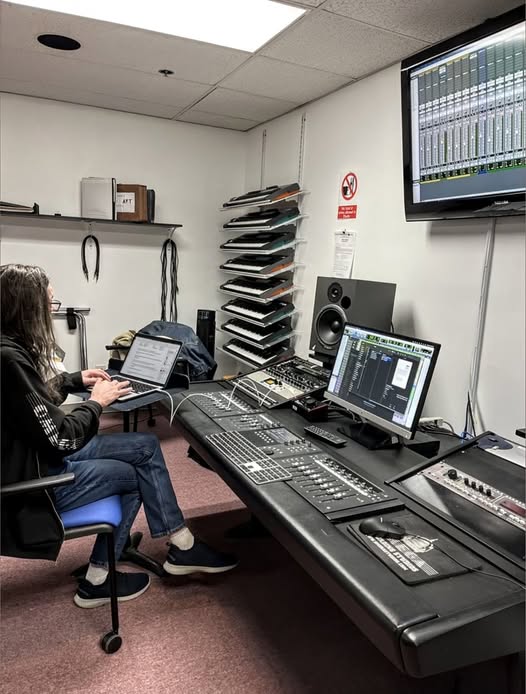

A lot of producers eventually struggle to choose between Windows and Mac for their music projects. Having chosen their preferred system, the discussion then turns to which DAW is suitable for that operating system.
Even though Macs are considered the industry standard nowadays, they are still rather expensive and can have software compatibility issues. Windows on the other hand has been tested with a lot of different music software, but has been known to crash unexpectedly.
Thus it’s important to know which DAWs are best for which system.
We’ve tested some popular DAWs on both Windows and Mac and have some results that can help with deciding.
Key Takeaways
- Both Windows and Mac support professional DAWs
- Your operating system affects stability and plugin support
- Comfort with your system often matters more than specs
- Most DAWs perform similarly once optimized
Software Support: What Runs Where
Let’s be honest, software compatibility is probably your biggest concern right now. The good news is that you don’t have to abandon your favorite DAW just because you picked one system over the other.
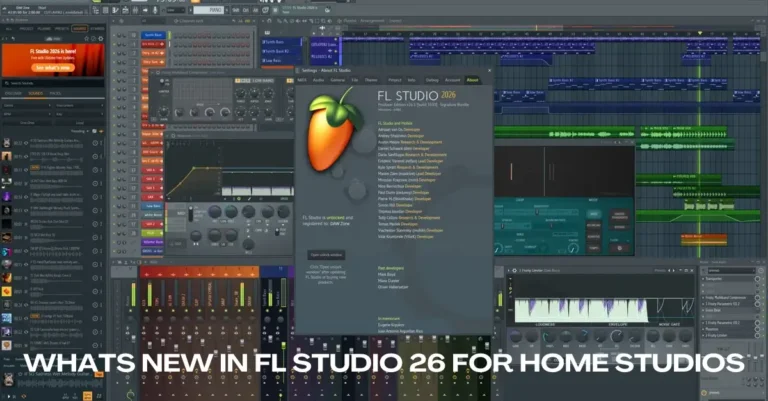
Most major DAWs like Ableton Live, Cubase, Pro Tools, and FL Studio work seamlessly on both Mac and Windows.
FL Studio used to be Windows-only, but those days are long gone. It’s now fully compatible with Mac machines too.
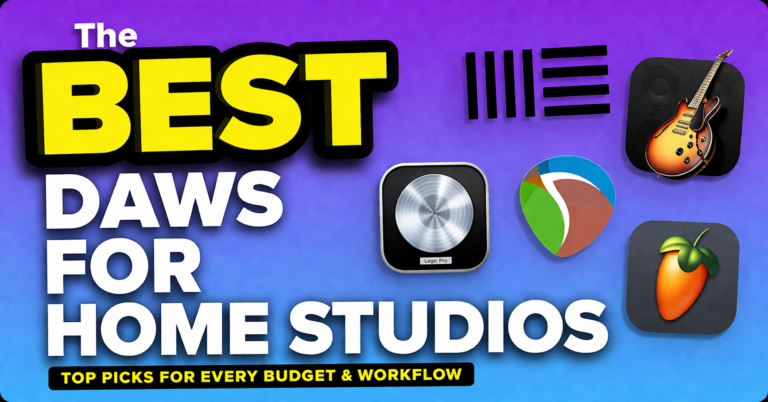
| DAW | Windows | Mac | Best For |
|---|---|---|---|
| Logic Pro | ❌ | ✅ | Songwriting & composition |
| GarageBand | ❌ | ✅ | Beginners learning basics |
| Ableton Live | ✅ | ✅ | Electronic music & live performance |
| FL Studio | ✅ | ✅ | Beat making & hip-hop production |
| Pro Tools | ✅ | ✅ | Professional recording studios |
| Cubase | ✅ | ✅ | All-around music production |
The main point is that if you’re already comfortable with cross-platform DAWs, you won’t miss out on much regardless of which system you choose.
That being said, there are some exclusive options to consider. Logic Pro and GarageBand only run on Mac.
This isn’t to say you should pick Mac just for Logic, but if you’re planning to collaborate with producers who use it, Mac might make your life easier.
Logic files won’t open on Windows systems. You’ll need to export audio tracks and send them back and forth, losing access to plugin chains and project details.
It’s tedious, especially for complex projects with dozens of tracks.
Plugin Compatibility and Variety
Here’s something that often gets overlooked: plugin support. Most plugins work with both systems, but there’s a catch.
AU plugins are Mac-exclusive, while VST plugins typically work on both platforms. The problem with Windows is that not every plugin maker offers Windows installers. Some developers only create Mac versions, leaving Windows users out in the cold.
The flip side?
Windows has a wider variety of free VST plugins. If you’re looking to build your plugin collection without spending a fortune, Windows gives you more options.
It’s normal for beginners to lean toward free plugins. Just make sure to check compatibility before downloading anything. You don’t want to waste time troubleshooting installation issues.
Plugin Considerations
- Windows supports VST broadly
- Mac supports AU and VST
- Some plugins launch earlier on Windows
Checking plugin support before committing saves frustration later.
Performance: Power vs Stability
Mac computers shine in terms of stability. The tight integration between Apple’s hardware and software means fewer crashes and smoother audio processing.
This reliability is crucial during recording sessions where system failures can ruin sessions.
Windows machines have caught up significantly in recent years. Modern PCs offer comparable processing power, and in some cases, they’re even faster than Macs.
The main advantage? Customization.
What You Can Upgrade on Windows PCs:
- RAM modules (easily add 16GB, 32GB, or more)
- Storage drives (install multiple SSDs)
- Graphics cards for better visual performance
- CPU for increased processing power
- Audio interface cards
You can build a Windows PC tailored specifically for music production.
Need more RAM? Add it yourself. Want faster storage? Install an SSD.
This flexibility lets you upgrade components one at a time rather than spending thousands upfront.
Business laptops from brands like Dell and Lenovo are solid choices. These machines are built for reliability and often come with easy access to RAM and hard drive ports.
But here’s the catch: not all Windows machines are created equal.
You need to do your research. Some brands in the same price range might not hold up under heavy audio workloads.
Audio Drivers: The Hidden Factor
This is where things get technical, but it’s important. Audio drivers power your entire music production setup, connecting software to hardware.
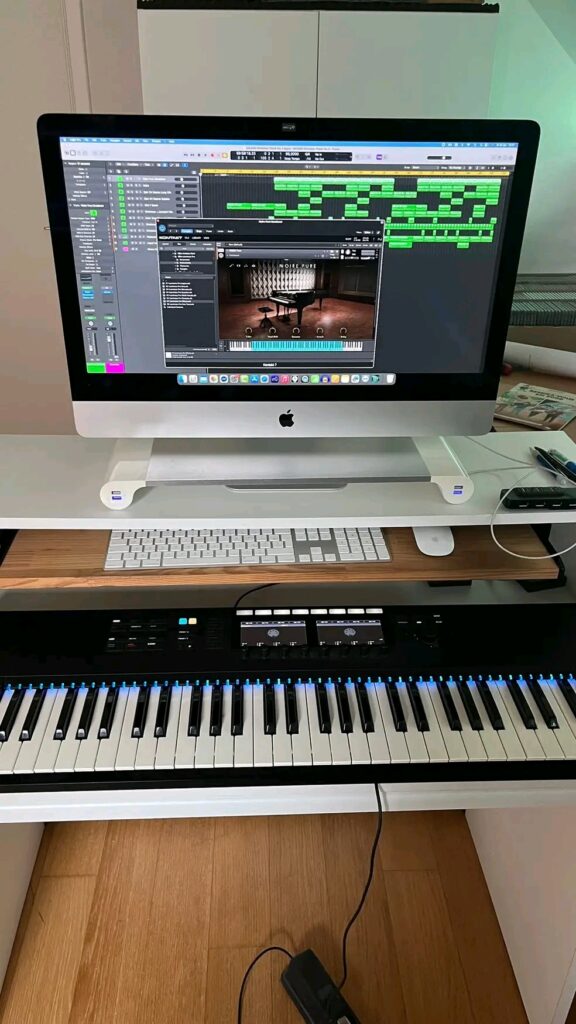
Mac uses CoreAudio, Apple’s native audio driver. It’s known for low latency, stability, and flexibility. CoreAudio doesn’t need extra drivers or troubleshooting.
Multiple audio interfaces? No problem. CoreAudio handles it seamlessly.
Windows uses ASIO, developed by Steinberg. ASIO delivers excellent performance, but it’s not as flexible as CoreAudio. Want to connect multiple audio interfaces? You’ll need ASIO4ALL, a virtual driver that bridges the gap.
The downside is that ASIO doesn’t allow apps to share MIDI data simultaneously. This means ASIO locks your MIDI device to one app at a time.
Need to adjust controller settings while working in your DAW? You’ll have to close and reopen software.
Mac’s CoreAudio lets multiple apps share MIDI freely. You can run a standalone plugin while using the same plugin inside your DAW. This is super handy for tweaking settings on the fly.
Some hardware manufacturers have also gained a reputation for developing subpar ASIO drivers. Korg, for example, has had compatibility issues with Windows machines, while their products work smoothly on Mac.
Hardware Compatibility and Setup
Most MIDI controllers and audio interfaces work with both systems. The difference lies in how easy they are to set up.
Mac offers plug-and-play simplicity. Connect your interface, and it’s ready to go. No drivers needed. No internet connection required. Just pure, instant compatibility.
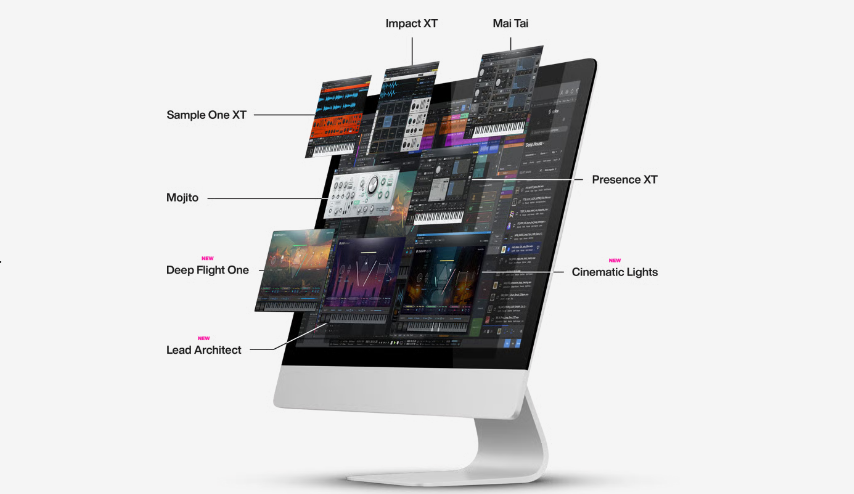
Windows machines often need additional drivers. Focusrite’s Scarlett series, for instance, requires driver downloads for Windows. Novation’s Launchpad needs extra software too.
These aren’t massive obstacles, but they add steps to your workflow. You’re dependent on stable internet before you can start making music.
If you already own audio interfaces or MIDI controllers, check their compatibility with your chosen system. Better to know now than discover issues after you’ve committed.
Cost: Upfront Investment vs Long-Term Value
A basic MacBook Air with 8GB RAM and 256GB storage costs around $999. Sounds reasonable until you realize that storage space is barely enough for a serious music project. Add external drives, and you’re spending more.
Want upgraded specs?
Prepare to shell out significantly more. Macs also lack ports, meaning you’ll need adapters and hubs for your gear.
Cost Differences To Consider
- Hardware pricing
- Upgrade paths
- Repair options
Long-term value matters more than initial price.
Windows laptops offer more budget-friendly options. You can get a capable machine for music production at half the price of a Mac. The money saved can go toward better monitors, interfaces, or studio treatment.
The good news is that you can easily upgrade Windows machines over time. Start with basic specs and expand as your budget allows. Macs offer limited upgradeability, and repairs are expensive.
Mac machines do hold their resale value better. If you eventually sell your Mac, you’ll recoup more of your investment compared to a Windows PC.
Live Performance: Reliability Matters
If you’re planning to use your computer for live shows, reliability becomes critical. Mac is the safer choice here. The consistent hardware and software integration mean fewer surprises on stage.

Deadmau5, for example, prefers Windows for his studio because he can build a beast of a machine.
But for live performances? He uses a MacBook Pro.
The reason is simple: reliability. Macs are consistent, and if something goes wrong on the road, finding a replacement is easier.
Windows can be just as capable for live music, but only if it’s well-optimized. You need to choose reliable hardware and tweak settings to ensure stability.
Business laptops are your best bet here.
One aspect that’s often overlooked: never use the same computer for both studio work and live performances.
Keep your live machine clean with only the essentials. This reduces CPU load and minimizes the risk of crashes.
Ideally, you should have two laptops for live use: a main one and a backup. Things can go wrong, and having a backup can save your performance.
Which DAW Feels Easier To Learn
Ease of use depends on familiarity.
Logic Pro feels intuitive for users comfortable with macOS. FL Studio feels intuitive for beat-focused producers. Studio One feels balanced on both platforms.
I adapted faster to DAWs that matched my system habits. That matters during deadlines.
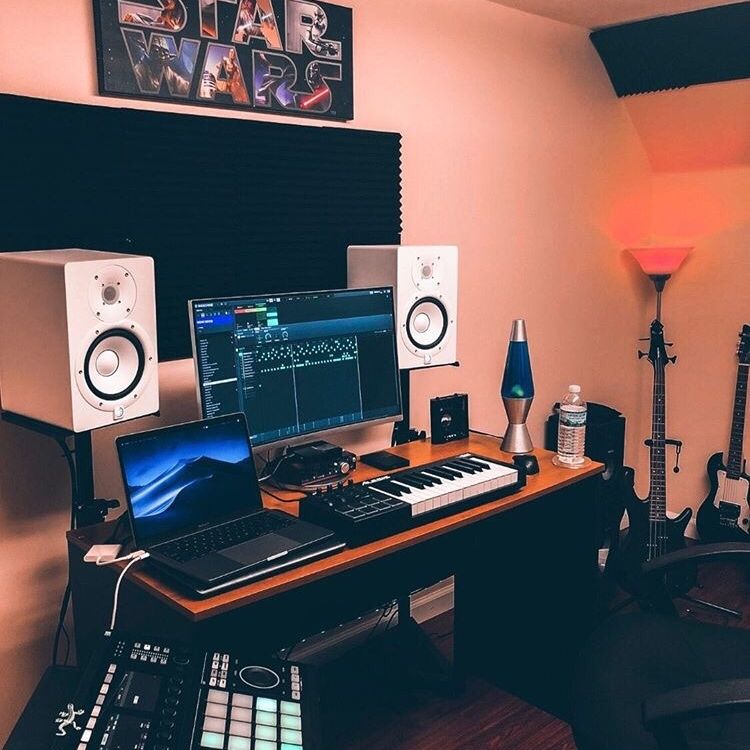
Learning speed affects productivity more than feature depth.
I’ve worked on both platforms across multiple studios. Each switch slowed me down at first.
Keyboard shortcuts changed, file systems felt different, and plugin locations shifted.
Once settled, results were identical but the adjustment period was the real cost.
That experience taught me something valuable. Comfort beats theory every time.
Mac vs Windows: Which Platform To Choose
There is no universal winner.
Mac suits producers who want stability and integration. Windows suits producers who want flexibility and choice.
Here is a simple breakdown.
Common Myths About Mac And Windows For Music Production
A lot of opinions float around about Mac and Windows in music production. Some are outdated. Others are just flat wrong.
One common myth says Macs sound better. They do not. DAWs process audio digitally, and the math stays the same on both systems.
Another myth claims Windows crashes more. In reality, stability depends on system maintenance and optimization.
I have seen perfectly stable Windows rigs and problematic Mac setups. The system does not decide success. The user does.
Believing these myths often leads to unnecessary upgrades or platform switching.
Myths Worth Letting Go
- Macs have better sound quality
- Windows cannot handle professional sessions
- You need a Mac to work in studios
Skill, setup, and workflow matter far more than the logo on the computer.
| Priority | Better Choice |
|---|---|
| Tight integration | Mac |
| Hardware flexibility | Windows |
| Budget control | Windows |
| macOS-only DAWs | Mac |
Your workflow should guide the decision.
Final Thoughts
The best DAW for Windows vs Mac depends on which DAW you are comfortable using. If you choose Mac, make sure the DAW is stable enough for your workload.
It also helps to install and test all effects and processing tools first. This avoids stutters or freezing when using your favorite plugins during sessions.
I recommend sticking with the operating system you already know. When issues appear, familiarity makes fixing them far easier than learning a new system under pressure.
Frequently Asked Questions
What is the best OS for music production?
Both macOS and Windows work well for music production. The best option is the one you know how to use and maintain confidently.
Is Windows or Mac better for artists?
Neither is better for everyone. Mac offers tight integration, while Windows offers flexibility and hardware choice.
Do professional producers use Windows or Mac?
Professionals use both. Many studios use Mac, while many producers work on Windows daily.
Does the operating system affect sound quality?
No. Sound quality depends on your DAW, plugins, and mixing skills, not the operating system.
Should beginners choose Mac or Windows for music production?
Beginners should use the system they already know. Familiarity helps solve problems faster and keeps learning fun.